TL;DR: Vectorizing a logo for hoodie printing means converting a pixel-based image (PNG/JPG) into a scalable vector file (AI, EPS, or SVG) that printers can resize and color-separate without quality loss. Use Adobe Illustrator’s Image Trace for simple logos or redraw complex ones manually, then outline fonts, expand strokes, and set spot colors before export.
Why hoodie printers reject your logo file
Hoodie printers reject logo files for five main reasons: low resolution, missing spot colors, live text, hidden layers, and the wrong color mode. A 72 DPI logo pulled off Instagram turns into a jagged mess when you blow it up to 12 inches across a hoodie chest. Printers need clean math-based lines to burn screens or program embroidery machines, and a web-grade raster doesn’t give them that.
Sending a bad file costs you time and money. Shops routinely tack on art fees in the $25 to $50 per hour range to clean up what customers send in. And if your design still has live text (fonts not converted to shapes), the printer’s machine will substitute a default font the moment the file opens on their end. White backgrounds get mistaken for white ink more often than you’d think, which is how people end up with a hoodie that has a glaring white rectangle around their logo.
Match the vector approach to the print method
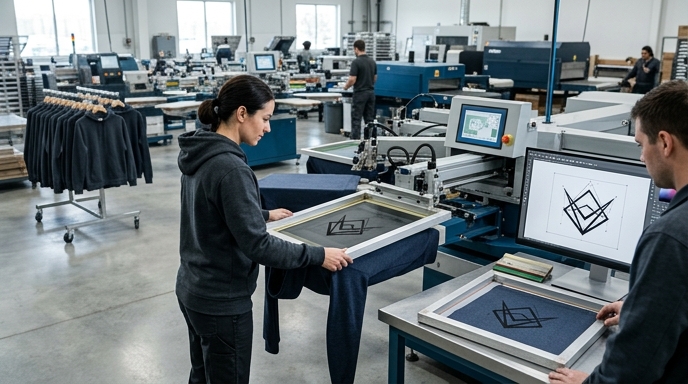
The prep your logo needs depends on the print method. Screen printing wants spot colors and simplified shapes; DTF and DTG tolerate more complex artwork. You can’t use one file for every production style, and anyone who tells you otherwise hasn’t actually run a job. Fleece is a heavily textured fabric, so fine details get swallowed by the weave regardless of method.
Screen printing demands hard edges and limited colors. A manual press budget run usually caps at 4 to 6 colors. Direct-to-Film (DTF) and Direct-to-Garment (DTG) handle full CMYK and can process raster images, though vectors still give you crisp text edges. Embroidery requires vectors to map stitch paths, and it has the strictest physical limits of anything on this list.
| Print Method | Vector Required? | Min. Stroke | Color Limit | Notes |
|---|---|---|---|---|
| Screen Print | Yes | 1pt (0.35mm) | Usually 4–6 (budget) | Requires spot colors. Inverted lines need 1.5pt. |
| DTF Transfer | Preferred | 0.5mm | Unlimited (CMYK) | Vectors ensure sharp edges; 300 DPI raster acceptable. |
| DTG | Optional | 0.5mm | Unlimited (CMYK) | Best for 100% cotton hoodies; handles gradients well. |
| Embroidery | Yes | 1.27mm (0.05 in) | Thread count limits | File gets converted to DST/EXP format by a digitizer. |
Pay attention to that embroidery row. 1.27mm doesn’t sound like much on screen, but on a mid-weight fleece hoodie it’s roughly the smallest satin stitch that’ll actually hold without pulling apart after a few washes.
Decide — auto-trace, redraw, or hire out
Three paths: click a button, draw it yourself, or pay someone else. Auto-tracing works fine for bold logos with 1 to 3 solid colors and no fine detail. Black silhouette or thick typography? Software handles it in seconds.
A manual redraw is mandatory for logos with thin strokes, gradients, overlapping text, or anything photographic. Auto-trace engines turn thin lines into lumpy, uneven shapes that look rough on a hoodie, and no amount of smoothing after the fact really fixes it.
Hire out when your time is worth more than the service cost. On Fiverr, basic auto-trace gigs start at $5, and manual redraws of complex logos run $15 to $35. Local shops or US-based freelancers usually start around $50 for a manual redraw. If you’re billing a client for the final hoodies, outsourcing the vectorization is cheap insurance against a print disaster.
Vectorize with Adobe Illustrator (Image Trace walkthrough)
Adobe Illustrator is still the industry standard, for better or worse. Open your raster image (PNG or JPG) in Illustrator. Select it with the Selection Tool (V). Go to Window > Image Trace to open the panel.
Pick the right preset. Black and White Logo for single-color designs, 3 Colors for simple flat graphics, High Fidelity Photo if you’re forcing a complex image into vector shapes against your better judgment.
Then adjust the sliders in the Advanced section. Push Paths up to around 75% for tighter adherence to your original shape. Lower Corners if your logo has rounded, soft edges. Check Ignore White to drop the background automatically. When the preview looks right, click Expand in the top control bar, which permanently converts the trace into editable vector paths. Save a copy before you expand, by the way. Once you’ve expanded, there’s no going back without redoing the whole trace.
Free alternatives that actually work (Inkscape + browser tools)
If you don’t want to pay for Adobe, free and low-cost tools can get you there. Inkscape is the most capable free desktop software. Import your image, select it, and go to Path > Trace Bitmap. It uses an autotrace engine that performs similarly to Illustrator’s basic presets. You can adjust the brightness cutoff threshold to grab more or less detail.
Browser-based tools are faster but have quality ceilings. Vectorizer.ai used to dominate this space with AI-assisted tracing, but it exited free beta in early 2025 and now runs around $9.99 per month. Vector Magic sits in the same neighborhood at $11.99 per month.
For a strictly free browser option, Adobe Express has a “Convert to SVG” tool. Requires an Adobe account. Zero slider adjustments. Works on high-contrast, high-resolution source files, falls apart on anything blurry or low-res.
| Tool | Cost | Best Feature | Quality Ceiling |
|---|---|---|---|
| Inkscape | Free | Desktop editing | Steep learning curve; manual cleanup required. |
| Vectorizer.ai | $9.99/mo | AI edge detection | Fails on very thin overlapping text. |
| Adobe Express | Free | One-click speed | No manual threshold adjustments allowed. |
Clean up the trace — the step everyone skips
This is the section I care most about, because it’s the step that separates a file a printer will thank you for from one they’ll charge you to fix.
Auto-tracing generates excess anchor points. A simple geometric logo should land under 100 anchor points, maybe 150 if there’s real detail in there. Auto-tracing routinely spits out 500 or more, and every one of those extra points is a tiny bump in your curve. On a 2-inch chest print you might not see it. On a 12-inch back print under decent light you absolutely will, and so will anyone looking at the hoodie.
In Illustrator, select your expanded artwork and go to Object > Path > Simplify. Drag the slider to cut the anchor point count while keeping the core shape intact. Use the Smooth Tool to work out the bumpy curves manually where the simplify dialog didn’t quite get there — this part is tedious and nobody enjoys it, which is exactly why most people skip it and send garbage to the printer.
Then delete the stray stuff. Auto-trace often creates invisible paths with no fill and no stroke, floating around in your file doing nothing except confusing the RIP software downstream. Switch to Outline mode (View > Outline or Ctrl/Cmd+Y) to spot them. Finally, use the Pathfinder panel to merge overlapping shapes of the same color into a single flat object. Overlapping shapes of the same color will separate into separate screens on some setups, which is the kind of thing you discover at the worst possible moment.
Honestly, I still spend more time on this step than on the actual tracing. Old habit from the manual-press days where every screen cost real money and real time, and a sloppy file would eat an hour of your afternoon before you even mixed ink.
Color setup — Pantone, CMYK, or RGB?
Use Pantone/spot colors for screen printing, CMYK for DTF and DTG, never RGB for anything headed to a printer. RGB is a light-based model for screens. Printers use physical ink. The two don’t translate cleanly.
Screen printing requires one physical mesh screen per color. You assign specific Pantone Solid Coated (C) colors to your vector shapes so the printer knows exactly which bucket of ink to mix. To get current Pantone libraries in Adobe software you need the Pantone Connect plugin, which runs $14.99 per month or $89.99 per year.
DTF and DTG printers use a four-color process (Cyan, Magenta, Yellow, Black) plus white ink. Set your document color mode to CMYK via File > Document Color Mode > CMYK Color. Neon, fluorescent, and highly saturated digital colors don’t exist in the CMYK gamut and will print duller than they look on your monitor. Every single time. This surprises people and I don’t know why — it’s been true for as long as CMYK has existed.
Pre-flight checklist before sending to the printer
Before emailing your file, run through this:
- Outline all fonts. Select all text, hit Shift+Ctrl+O (Windows) or Shift+Cmd+O (Mac). Turns fonts into uneditable shapes.
- Expand all strokes via Object > Expand. Keeps line weights from scaling weirdly on the printer’s end.
- Delete anything hidden, locked, or sitting off the artboard.
- Size at 100% — scale the artwork to the exact physical dimensions you want on the hoodie (11 inches wide, say).
- Export a package. Save the master as AI or PDF/X-4. A lot of older shops still ask for EPS, so include one. Toss in a 300 DPI PNG as a visual reference so whoever opens the file knows what it’s supposed to look like.
When vectorizing is the wrong move
Not every logo belongs in vector. Photo-origin logos, hand-drawn pencil textures, watercolor marks, distressed vintage designs — they all lose their physical character the moment you run them through an auto-tracer.
If your logo relies on soft halftones or photographic elements, vectorizing it will create harsh, posterized color bands where the gradients used to be. For DTF and DTG, a 300 DPI PNG sized exactly to the print dimensions (3600 pixels wide for a 12-inch print) is usually better than a bad vector. Streetwear brands lean on high-res raster files all the time for complex, multi-color graphics, because DTG machines process raster gradients more gracefully than vector gradients. If you’re going DTG on cotton fleece, don’t force the issue.
FAQ
Can I print a PNG on a hoodie?
Yes, but only if the PNG is at least 300 DPI at full print size and the printer is running DTF or DTG. Screen printing and embroidery need vector files.
What’s the best free way to vectorize a logo?
Inkscape, using Trace Bitmap. It takes longer to learn than the browser tools but the output is more controllable, and for anything you plan to actually print it’s worth the extra hour. Adobe Express has a free one-click SVG converter if you just want something fast, but it won’t give you anything to adjust when the trace comes out wrong — and it will come out wrong on anything but a clean, high-contrast source.
Does my logo need to be a specific file format for screen printing?
Screen printers generally want AI, EPS, or PDF.
How much does professional vectorization cost?
Fiverr starts around $5 and goes up to $35 for complex redraws. Local shops and agencies usually charge $25 to $50 per hour.